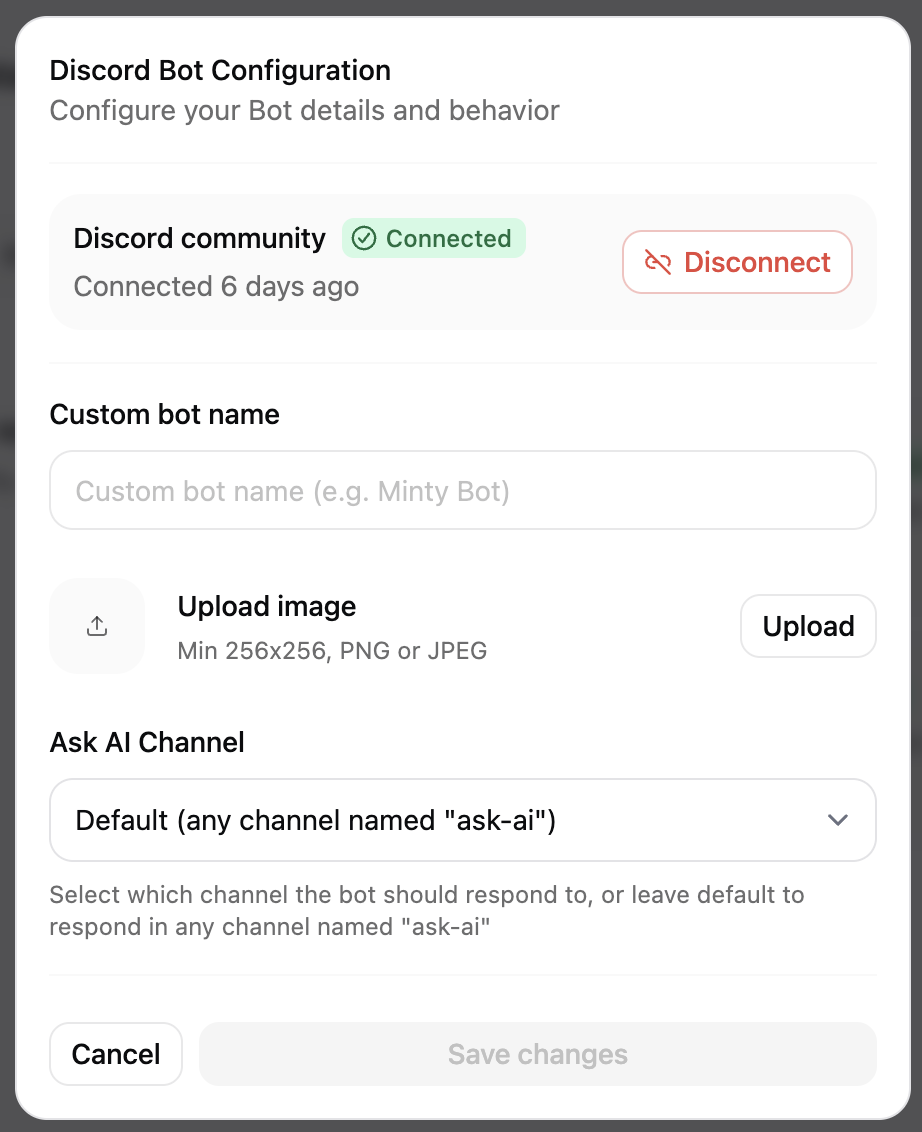
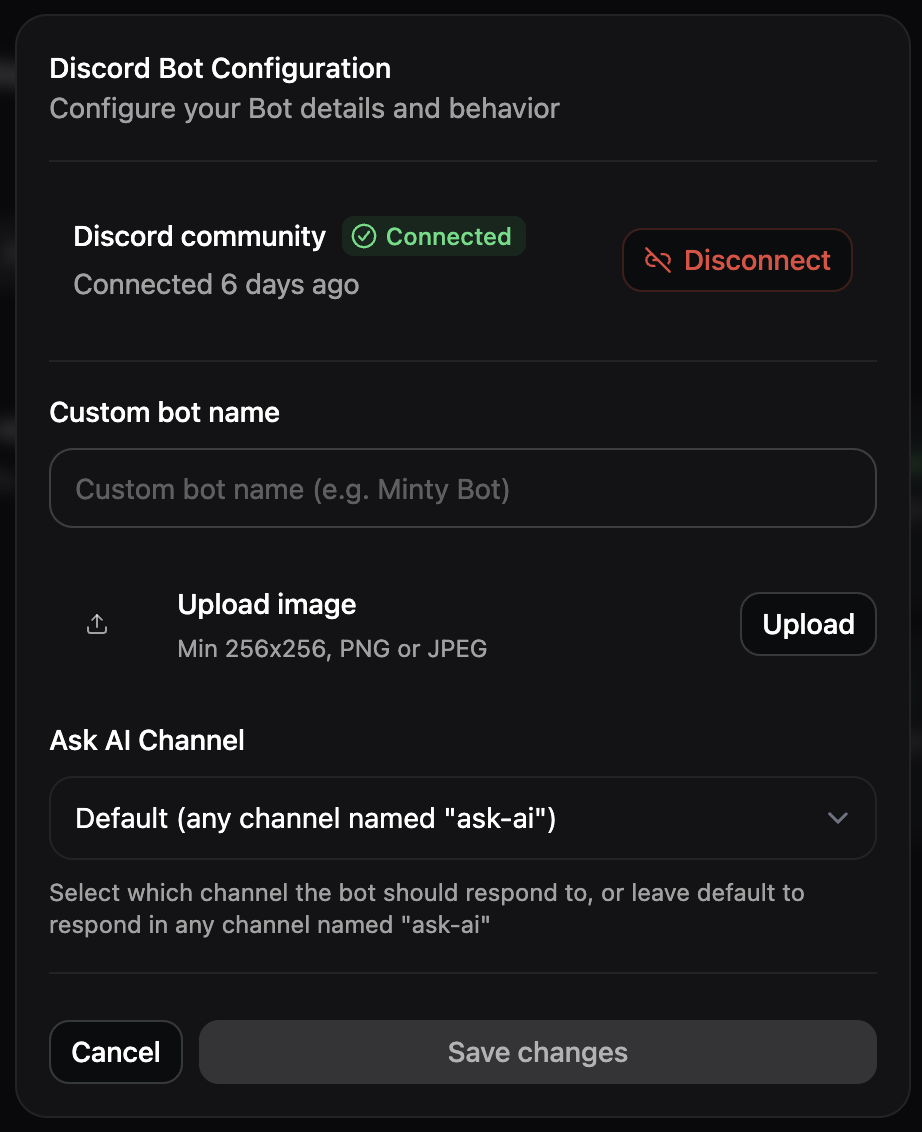
Discord integrations are available on Pro and Custom plans with access to the assistant.
@ mentions or to all messages in a specific channel.
Each message sent by the Discord bot counts toward your assistant message usage.
Add the Discord bot to your server
You must have the “Manage Server” permission in Discord to add the bot.
- Navigate to the Integrations tab of the Assistant Configurations page in your dashboard.
-
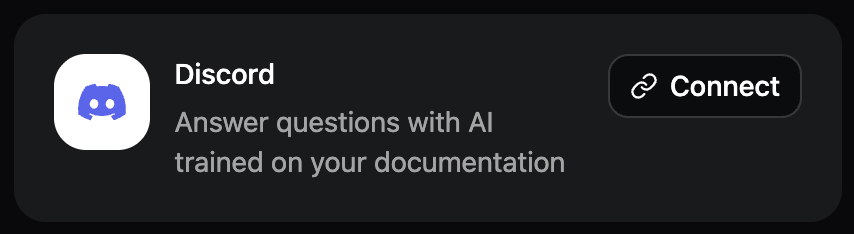
In the Discord card, click Connect. This opens Discord.
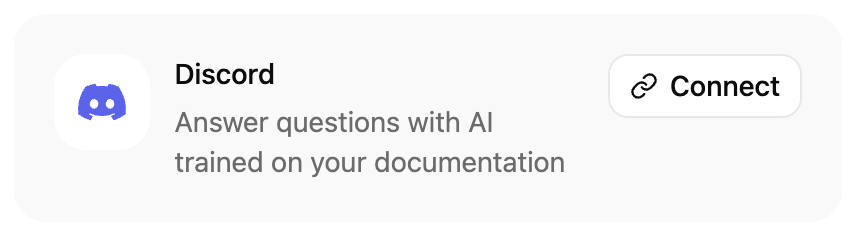
- In Discord, select the server you want to add the bot to.
- Authorize the bot to access your server.
-
Mention the bot to add it to a channel. The bot’s default name is
@Mintlify Bot.
Create an #ask-ai channel
To help your community quickly get answers to their questions, the bot can reply to every message in a channel that you choose. By default, the bot replies to every message in channels named #ask-ai. Create an #ask-ai channel and let your community know that the bot will reply to messages in that channel.
If you want the bot to reply to messages in a different channel, select a channel in the Discord bot configuration menu.